Sharing a project
Sharing turns a project that only lives on your device into one the rest of the crew can join. Read How collaboration works first if you have not — it explains what "shared" actually means before you turn it on.
Opening the sharing screen
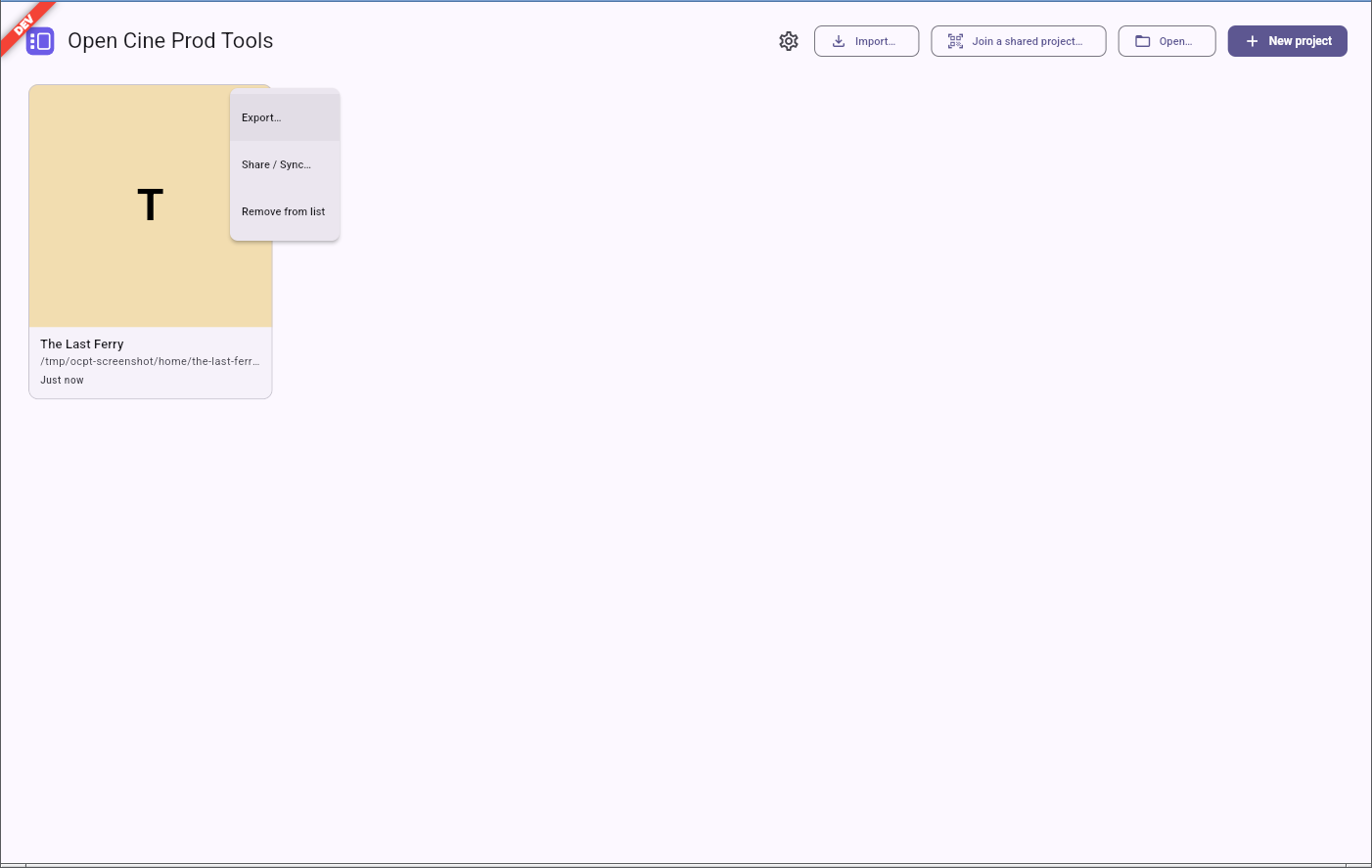
The sharing screen is only reachable from the home screen: open a project's card ⋮ menu and choose Share / Sync… (the same menu also has Export… and Remove from list). It is not reachable from inside an already-open project — sharing is something you set up before, or between, working sessions, from the card itself.
The screen that opens is titled Share "<project name>", with a "① Configure" step and a "Not
paired" badge at the top right. A segmented toggle splits it into two ways of sharing: Remote
relay (the default, covered next) and Host on this machine (covered below). Sharing needs a
place for every device to meet either way — a relay already running somewhere (a self-hosted
server, or one a colleague set up), or your own machine acting as one.
Pairing to a relay
If you already know a relay's address — the one your production runs, or one you host yourself — keep the Remote relay option and enter:
- the Relay address;
- the Enrolment secret that relay's operator gave you.
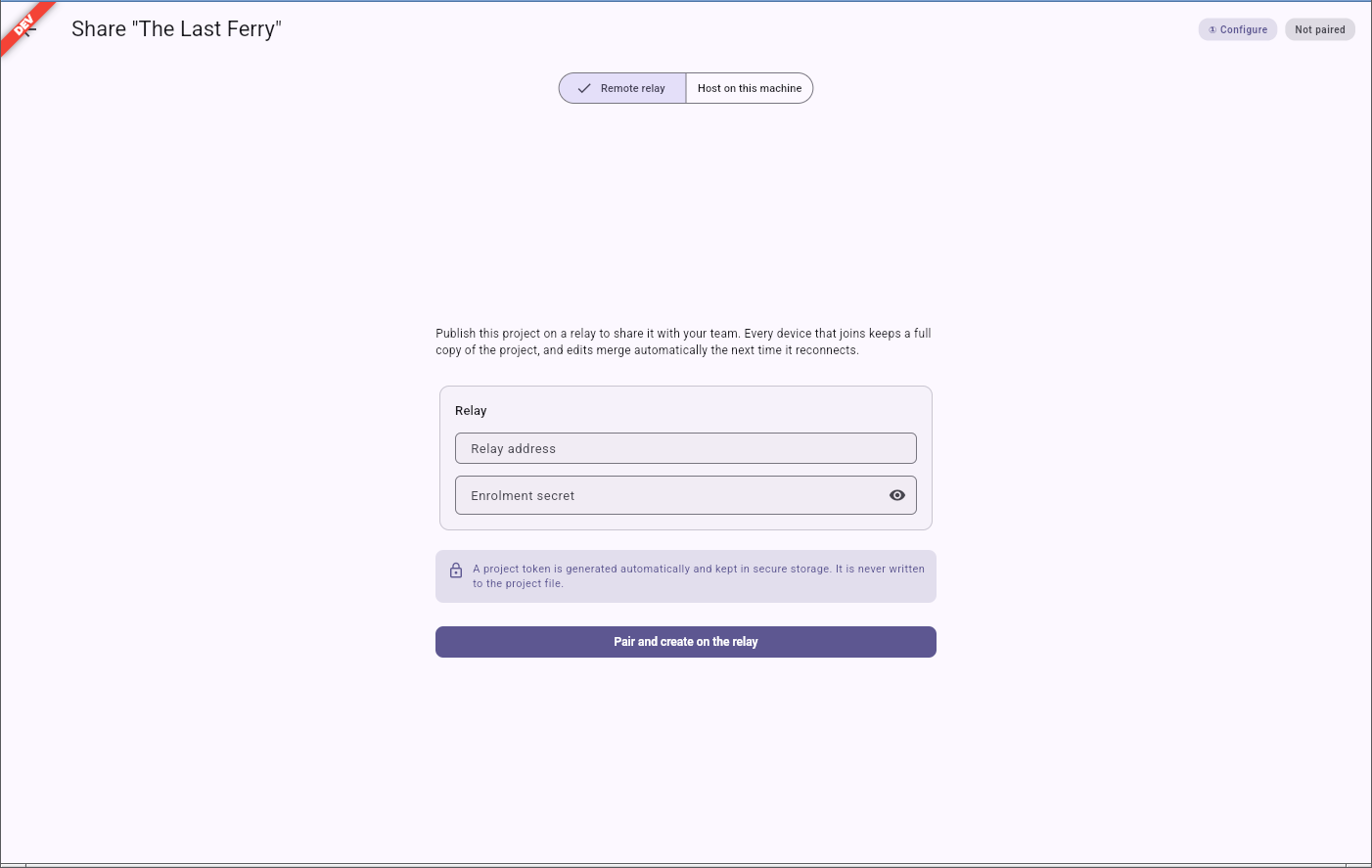
A note under these fields explains that a project token is generated automatically and kept in secure storage — it is never written to the project file. Confirming with Pair and create on the relay pairs the project to that relay: it sends your project's current content so the next person who joins can download it, and starts syncing. From this point on, the project is shared.
The invite
Once paired, the screen moves to a second step and shows the project's invite: a QR code and its equivalent as a copyable link. Anyone who scans the QR or opens the link can join the project — see Joining a project for what that looks like on their side.
Share the QR by pointing a colleague's camera at your screen, or send the copied link however you would send any other link (chat, email). The invite carries no password of its own to read out loud; whoever holds the QR or the link can join, so treat it the way you would a shared document link.
A stop sharing action is also here, for when a project should no longer accept new devices or sync further; because this cannot be undone from the screen, it is confirmed before it takes effect.
Hosting the relay yourself
If no relay is available, or the shoot has no internet at all, switching the segmented toggle to Host on this machine offers a Hosting switch (it reads "Stopped" while off) that turns your own device into the relay everyone else pairs to, with nothing separate to install or run. This is the right choice for a laptop that is already open on the project — the video-village machine on a shoot, or a producer's own computer acting as the project's long-term meeting point between shoots.
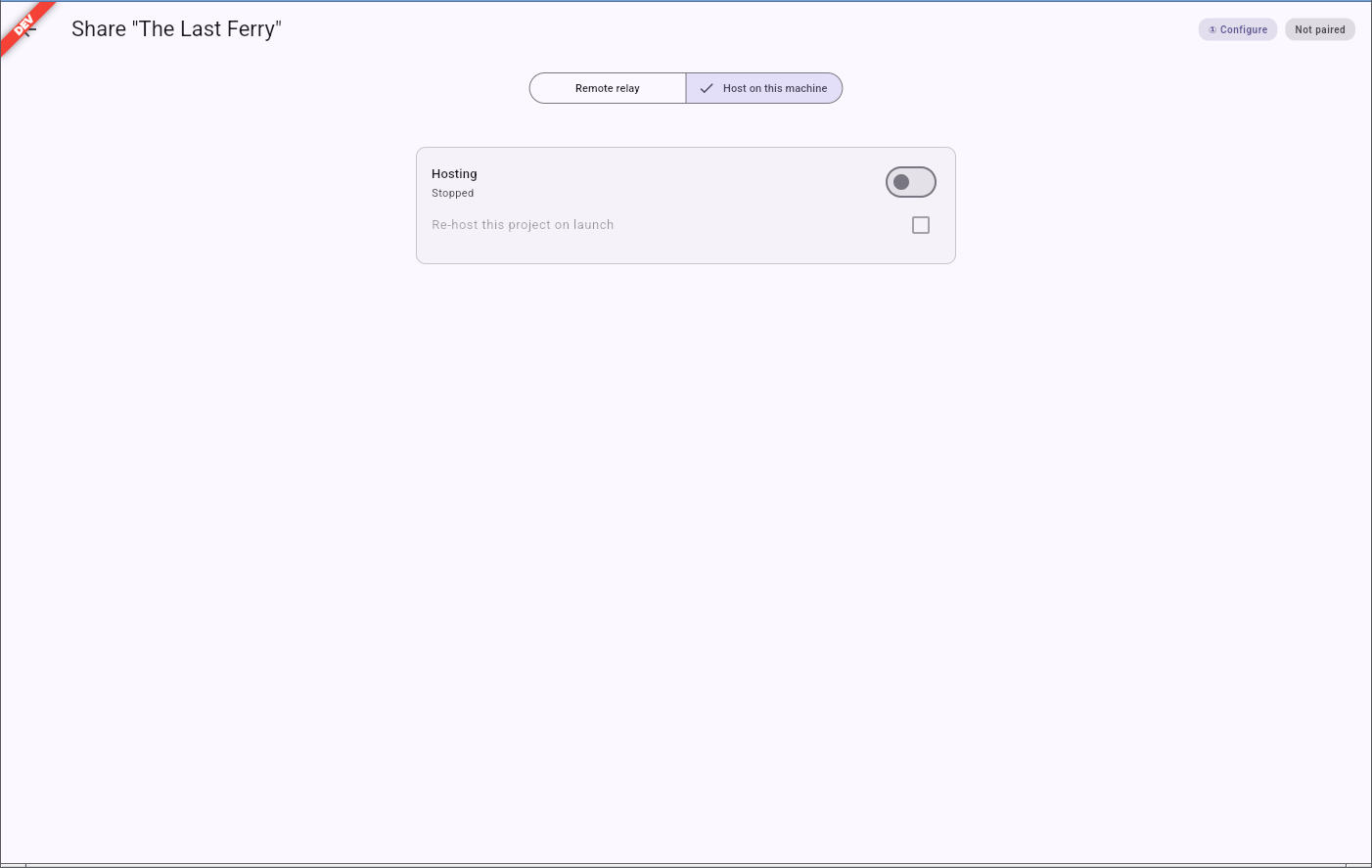
This panel also shows who is currently connected to your hosted relay, and a Re-host this project on launch checkbox so hosting comes back on its own the next time you open the project. Hosting a relay opens it up to the rest of your local network, on purpose — see the firewall note in The on-set server for what that means in practice.
Whoever actually runs the machine as a relay for a full shoot day — rather than just turning the
switch on for a quick pairing — is the audience for the more technical operator's guide,
docs/on-set-server.md in the project's repository; point them to it rather than improvising.
Hosting is desktop only
Turning a device into a relay is a desktop feature: a tablet or a phone can pair to a relay and join a shared project like any other device, but it cannot host one itself.