First steps
On launch, the application opens its home screen: the doorway to your projects.
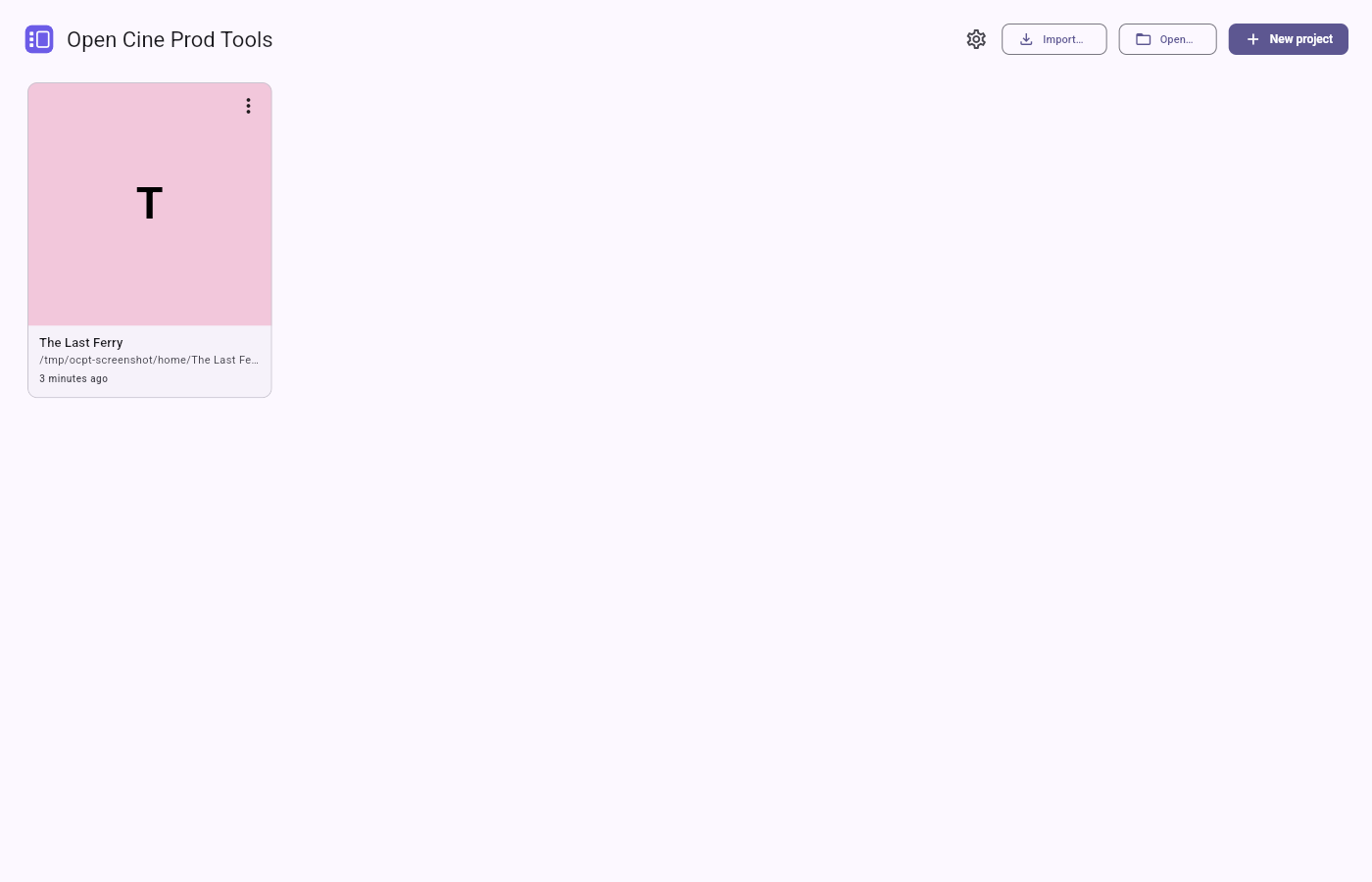
The home screen
The home screen shows a grid of cards, one per recent project (up to ten). Each card wears a "poster" tint drawn from a small palette, computed from the file's path: a project therefore keeps the same colour from one launch to the next and from one machine to another. A ⟨N episodes⟩ pill appears on projects that hold more than one.
At the top of the home screen, two actions:
- New — create a project. On a computer, a save dialog lets you pick where the
.ocptfile goes; on a tablet or phone it is placed alongside your other projects automatically. - Open… — select an existing
.ocptfile on disk.
Clicking a card reopens the matching project. A card's ⋮ menu also lets you export the project as a portable package without even opening it.
Create your first project
- Click New.
- Give it a name. On a computer, a save dialog opens next — it suggests the folder you last saved
a project in (your Documents folder the very first time) and the name you just typed, and you
can change either. On a tablet or phone, where there is no such dialog, the
.ocptfile is placed alongside your other projects automatically, a colliding name numbered asName (2).ocpt. Either way, an existing file is never replaced. - The application opens the workspace on the Screenplay mode.
You are ready to write. A new project starts with a single episode; you can turn it into a series later (see Projects and episodes).
Import rather than start from scratch
If you already have a screenplay, the home screen offers an Import… button with two choices:
- A project — an
.ocptzpackage someone sent you. - A screenplay — a
.fountain,.fdx(Final Draft) or.celtx(Celtx) file. The last two are converted to Fountain on import.
Finding your way next
The workspace is the same frame around every tool. The page The workspace takes you around it.