Working on a tablet or phone
The same application and the same shared project follow you from a desktop to a tablet on set to a phone in your pocket. The workspace adapts to the screen it runs on rather than offering a separate, cut-down app.
On a tablet
A tablet keeps the full workspace described in The workspace: the toolbar, the side panels, the centre, the status bar, the mode switcher at the bottom. The side panels stay resizable by dragging their edge, exactly as on desktop, so you can widen the scene list or narrow it to give more room to the page — whichever suits the screen size and the job at hand. This is the natural device for an assistant director following the schedule on set, or a script supervisor checking the breakdown between takes, all while their edits sync with everyone else's the moment there is a connection.
On a phone
A phone's screen is too narrow for the same layout side by side, so the workspace switches to a compact layout: the side panels are no longer shown docked next to the centre but tucked away behind their own toolbar controls, opened one at a time over the content rather than beside it. The screenplay mode in particular reflows its page to the narrower width rather than shrinking the whole layout down to an unreadable size. The mode switcher, the toolbar's essential controls and the sync and presence indicators all stay reachable — nothing on a phone is a reduced feature set, only a rearranged one.
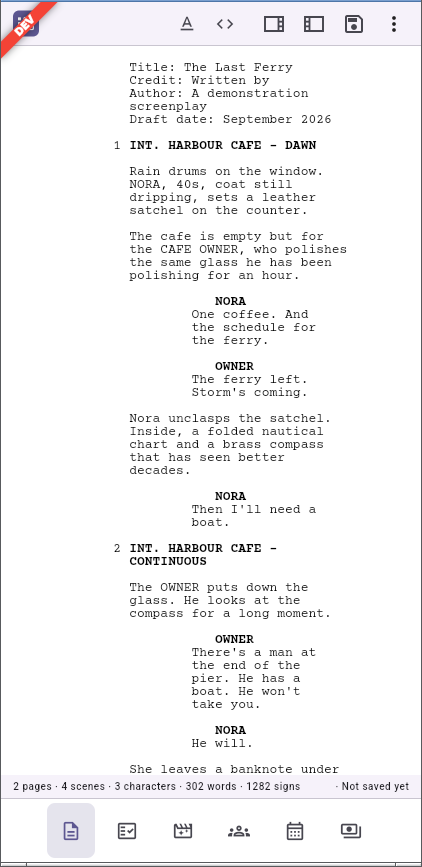
Exporting from a phone
Exporting on a phone goes through the platform's own share sheet rather than a save-to-disk dialogue: choosing Export offers the exported file (a PDF, a spreadsheet, a Fountain file, a portable project package) to whichever app or destination you pick from the system's own sharing menu — sending it by email, dropping it into a cloud-storage app, printing it, or handing it to any other app installed on the device. This is the same set of export formats the desktop Export panel offers, described in Exporting your work; only how you receive the file differs.
Joining and sharing on a small screen
Joining a shared project on a tablet or a phone favours the camera: the joining screen opens straight onto a camera scan rather than a field to paste a link into, since typing a long invite link on a touch keyboard is exactly the friction scanning avoids. Hosting a relay yourself, on the other hand, stays a desktop feature — see Sharing a project.