Shot list
What the shot list is for
The Shot list mode is where you break the screenplay down shot by shot. Each scene of the screenplay becomes a row; inside it, you author the shots you plan to film, describing the image (shot size, framing, camera move, lens, format), the difficulty, the sound, your mise en scène (directing) notes and the characters present. You also record each shot's coverage: which exact passages of the written scene that shot films.
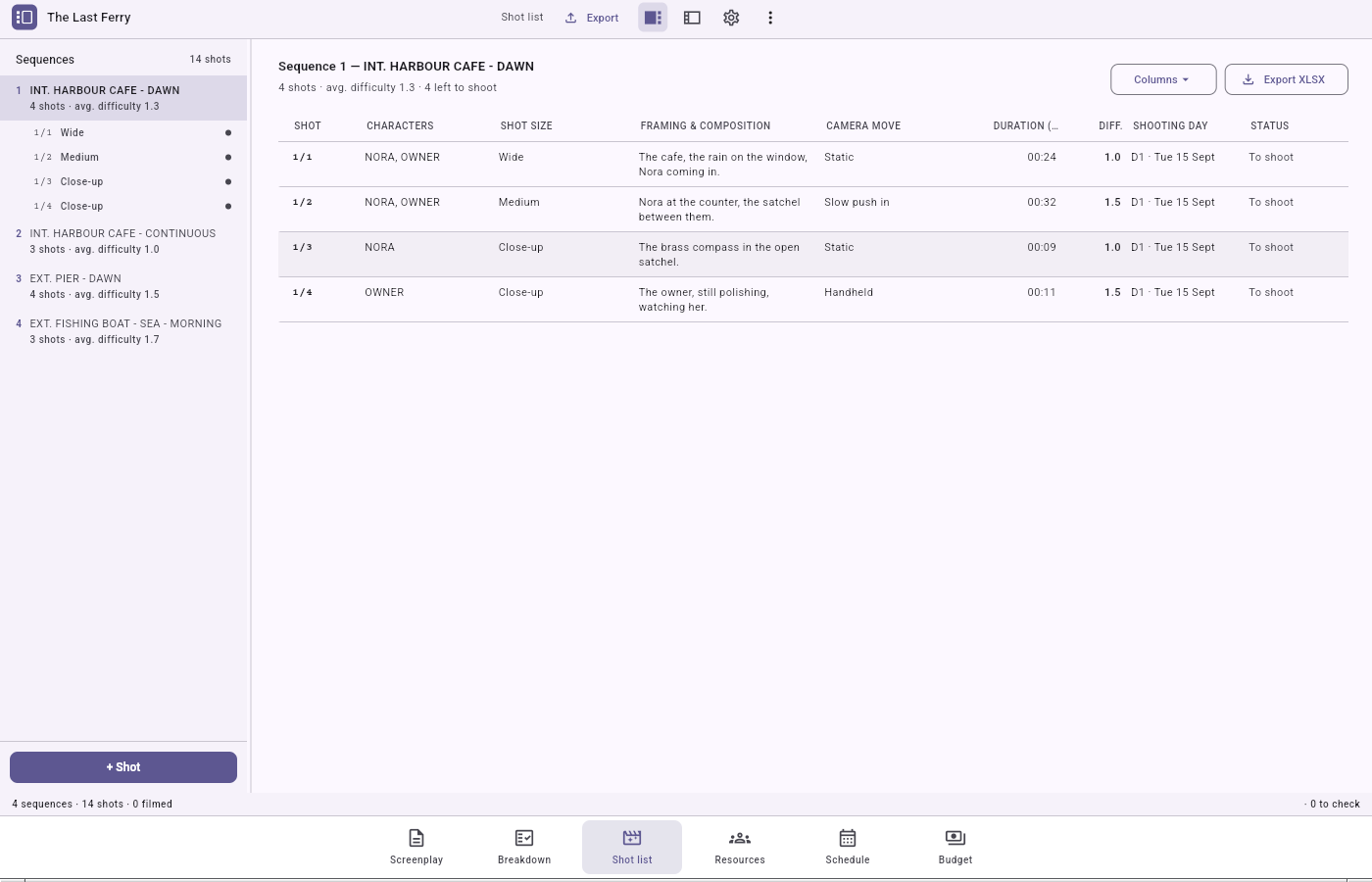
The screen layout
Three zones, all resizable (the ⋮ menu → Reset panel layout restores the defaults):
- Left panel — the scene tree. One row per scene, with its number (in the accent colour), its
heading and a summary (shot count · average difficulty). Click a scene to select it; it expands
and lists its shots. A special "orphan" group gathers shots whose scene was deleted from
the screenplay — deleting a scene never destroys its shots. The panel footer holds the
+ Shotbutton. - Centre — the shot table, the board or the floor plans. A
Table · Board · Floor plansswitch in the centre header swaps this zone between the dense shot table described below, the storyboard and the floor plans. All three share the scene tree on the left, the dock on the right, and the one shot you have selected. - The shot table, the default of the three: a dense, read-only table of the selected scene's
shots. Columns always present: shot code, characters, shot size, framing, camera move,
difficulty. The
Columns ▾menu adds others (set, lens, format, duration, takes, sound, shooting day, status). Clicking a row selects the shot and opens the inspector — no editing in the table. - Right panel — the tabbed dock: Inspector (edit the shot), Metadata (a read-only summary) and Versions.
- Status bar: number of scenes, total shots, filmed shots, shots to check.
Adding, editing, deleting a shot
- Add: select a real scene (not the orphan group), then
+ Shot. A shot is created at the end of the scene and selected. - Edit: click a shot to open the inspector, then edit the fields in place. Text fields save themselves a couple of seconds after you stop typing.
- Reorder: shot codes are
scene/rankand are derived automatically; the application renumbers after a deletion. - Delete:
Delete shotat the bottom of the inspector (or the delete button on the row, for an orphan shot). Both ask for confirmation.
The shot inspector
The inspector groups: a header with the code and a status pill, plus a "needs checking" callout when the covered text has changed; Characters (chips to toggle, drawn from the screenplay); Coverage (see below); Image (shot size, abbreviation, framing, camera move, lens, recording format); Difficulty (four axes — set, camera move, acting, sound — rated 0 to 5, whose average shows and reddens as it climbs); Production (estimated duration in m:ss, sound notes); Notes (mise en scène); Location (scouting notes).
Coverage — linking a shot to the screenplay
The Coverage section lists, read-only, the extracts the shot films, with a "N words covered
of M" counter and the codes of the other shots covering the same text. To change it, click
Select…: a dialog shows the scene typeset on a sheet, in screenplay font. Click a word to
open a range, click again to close it (a range can span several blocks); clicking already-
covered text removes that range. Your shot's coverage shows as a strong highlight, other shots'
coverage as a faint wash. Clear all removes every range.
If the screenplay later changes, affected extracts get a Modified badge and the shot is flagged for checking — you clear the flag with Mark as checked.
The storyboard
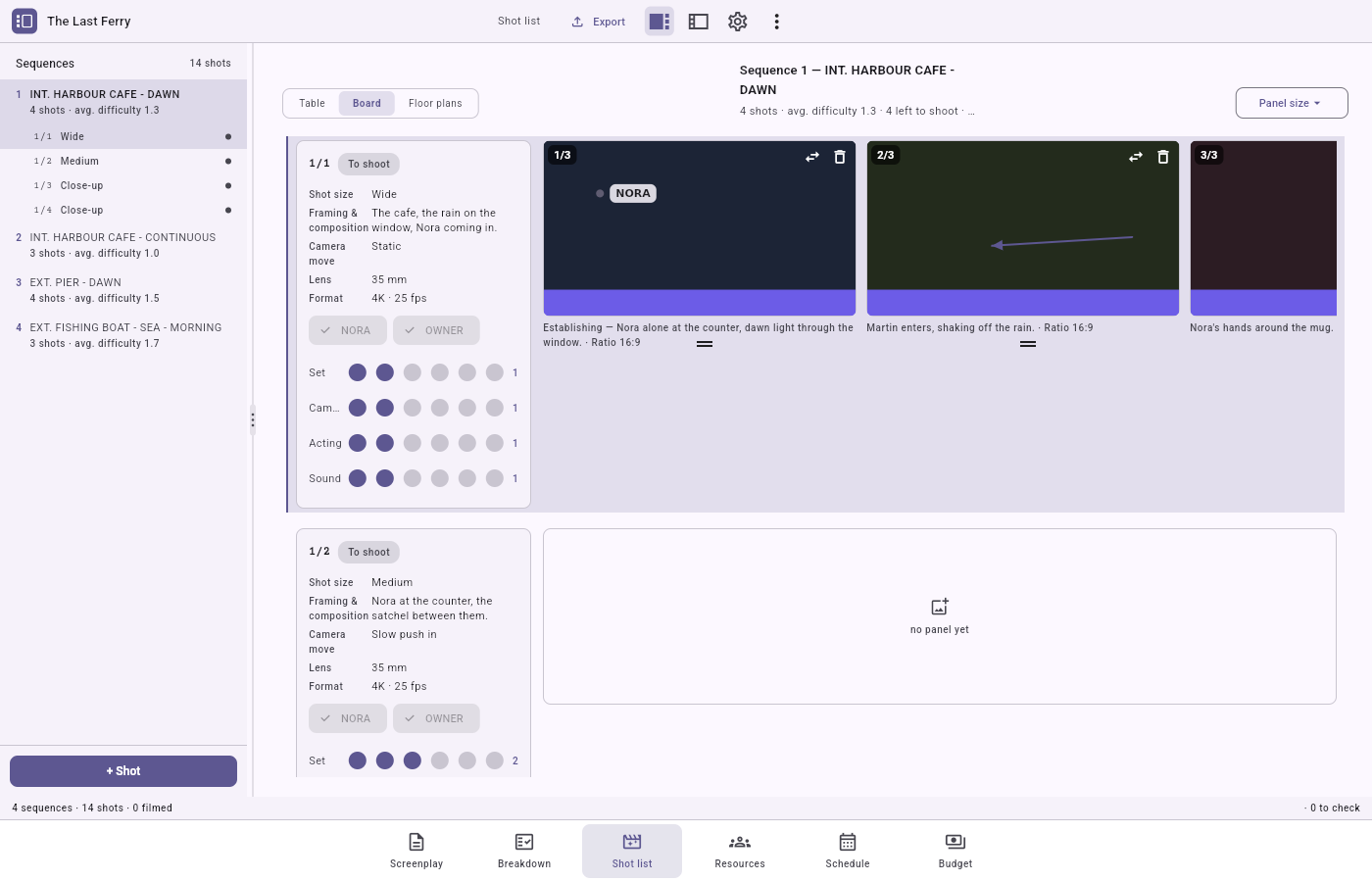
Switch the centre header to Board to lay out each shot's reference frames instead of its row in the table. The scene tree, the dock and the selected shot stay the same as in the other two views — picking a shot here is the same selection the table and the floor plans use.
Panels
A shot can hold several panels — its start and how it ends, or one per distinct set-up — each a small card in the shot's own strip. Import frame brings in a JPEG or PNG from disk; the image is referenced by its path, like every photo and document in the project, never copied in. Replace image swaps a panel's frame without touching its comment or its annotations. A panel's own ratio follows the shot's recording format, falling back to 16:9 when none is set, so a board mixing formats reads honestly instead of forcing every panel to the same shape.
Drag a panel to reorder it within the strip, or use Move earlier / Move later. The Panel size menu (Small / Medium / Large) controls how much room the strip gives each one. The comment field under a panel is free text — a note to the camera operator, a reminder about a prop. Next to the panels, a leader card always shows the shot's own découpage information (shot size, framing, camera move), so you keep sight of what you are boarding while scrolling past its frames.
Delete panel removes a panel's image, comment and annotations for good, and asks first.
Annotations
Mark up a panel's image directly with the movement arrow (how something in frame moves — an actor crossing, a car passing), the camera-move arrow (how the camera itself moves — a pan, a dolly, a push-in) and the label tools — light marking, not a redraw of the frame. Click a mark to select it, then Remove mark; like every deletion in the mode, this asks first.
Floor plans
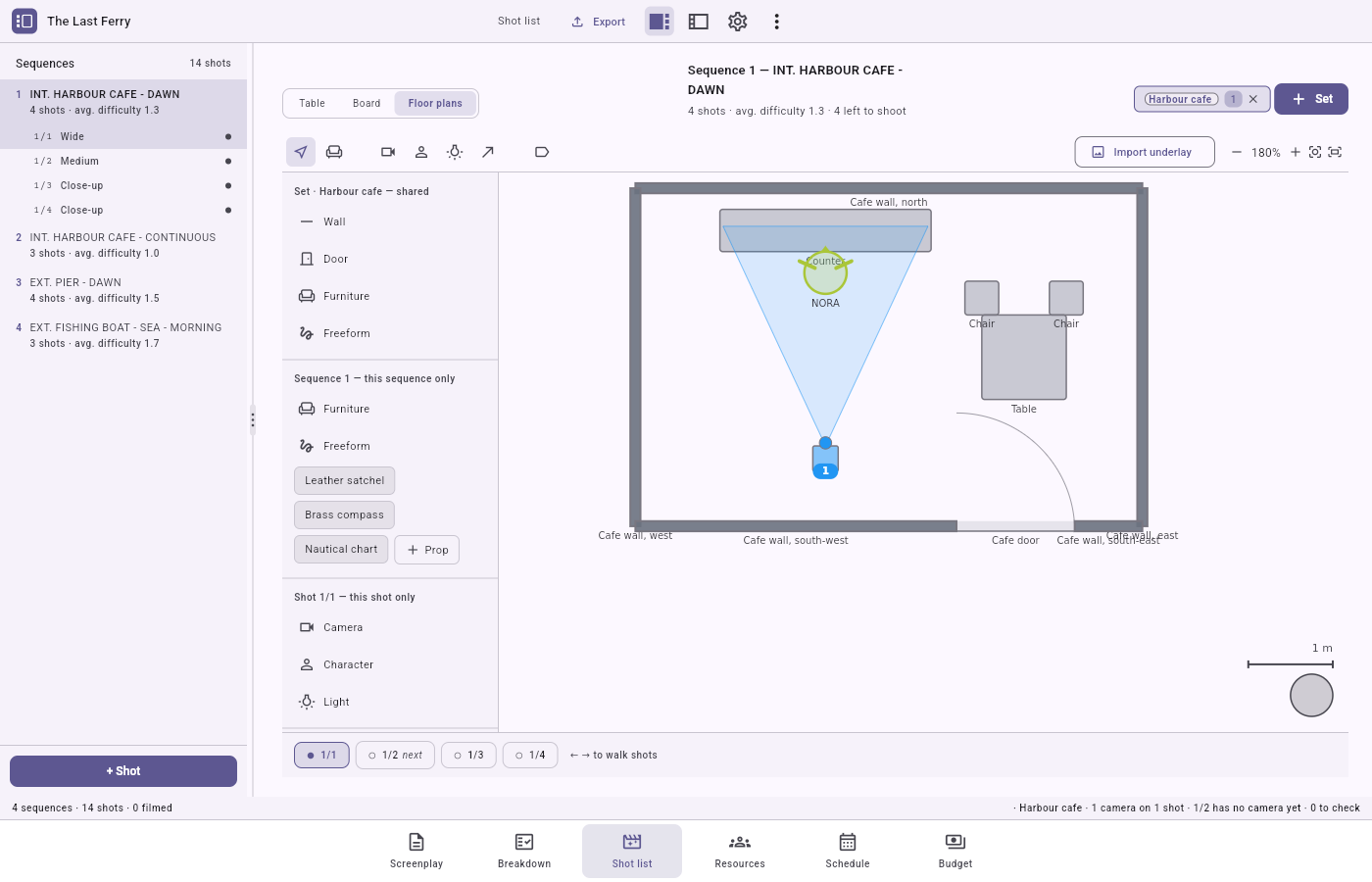
Switch the centre header to Floor plans for a top-down, schematic view of the décor a sequence's shots are staged in: where the walls and the furniture sit, where each camera points, where the cast and the lights stand.
A plan belongs to its set, not to a sequence
A floor plan is the plan of a Resources set (a décor) — one plan per set, shared by every sequence that links to it, whether from the breakdown's own sets row or from this mode's own gallery below. Editing stays here, in the shot list; the Resources set's own sheet only shows an indicator and an Open in shot list reveal (see below).
What you draw sits at one of three scopes:
Set · Kitchen — shared by every sequence   walls, doors, furniture, the underlay
Sequence 7 — this sequence only            re-dressed furniture, this sequence's own props
Shot 7/3 — this shot only                  cameras, characters, lights, arrows
Concretely: a kitchen is shot by sequences 3 and 7. The walls, the counter and the fridge are Set-scope — draw them once and both sequences show them. In sequence 7 the table is pushed against the wall for a party; that is a Sequence-scope change, made once for sequence 7 and left untouched in sequence 3. The camera position, the characters in the room and the key light for shot 7/3 are Shot-scope: they belong to that one shot alone, and shot 7/4 in the same sequence can place its own camera without disturbing them.
Linking a set to a sequence
A sequence with no linked set shows an empty-state gallery: one card per set already drawn in
the project, its own thumbnail, the scene heading's own suggestion starred and listed first.
Click a card to link that set; Create a set… opens the same picker the + Set button
does. That button's own menu offers the suggested set first, Link an existing set (grouped by
location), Create a set (in an existing location, or a new one), then, once a set is linked,
Duplicate this set (an independent copy, in the same location) and Copy blocking from a
shot… (bring another shot's cameras, characters and lights onto this one).
Unlinking a set from a sequence keeps the set's own plan; the dialog counts what leaves this sequence's view ("4 cameras, 2 characters and 3 props are placed on it: they come back if you link this set again").
Drawing the set — the palette's three groups
The palette down the canvas's left names where a placed element lands:
Set · <name> — shared— the wall, door, furniture and freeform tools, for what belongs to the room itself. Drag a tool onto the canvas, or click it to arm it and click the canvas to place, then draw or resize it in metres.Sequence <n> — this sequence only— chips for the focused sequence's own breakdown props (the breakdown's tagged elements), each placed with its own name, plus anOther…chip for a free label; and this sequence's own re-dressed furniture.Shot <code> — this shot only— camera, character and light, for what belongs to this one shot alone.View— layer visibility, the underlay, onion skin, metrics and field-of-view toggles (see below). No tool is ever greyed out: placing or moving something is simply withheld under a read-only preview.
Cameras, characters and the underlay
A camera keeps the number of the shot it belongs to: a shot with one camera reads 3, and
the moment a second camera joins the same shot both are lettered (3A, 3B) — a missing number
on the focus strip is a shot still to place. Drag a camera's field-of-view cone by its edge
handles to widen or narrow the angle, and by its tip handle to set how far it reaches; rotate
it by aiming its handle at where it should point.
Placing a character asks its name on the spot, suggesting the shot's own characters first — naming it never edits the shot's characters field, since anyone can physically stand in the room. An underlay — a photographed floor plan or a location photo, JPEG or PNG, referenced by its path — sits behind everything else; Import underlay brings one in, and you resize and move it freely to line it up against the scale bar. Replace underlay and Clear underlay (which asks first) manage it afterwards.
Nothing here is drawn to a grid: the plan is schematic, and its geometry is stored in metres. A standard-sized character silhouette and a scale bar, always visible along the bottom, read off the current zoom. Turn on Show metrics to see the distance from the selected object to every other visible one (or, with a camera selected, to its subject) — the small help button next to the toggle explains it, for when a tooltip is out of reach on a touch screen.
Onion skin and walking the shots
A focus strip along the bottom lists the sequence's shots as chips — a filled dot means the shot already has a camera on the set you are viewing, a hollow one means it doesn't yet — and the arrow keys walk between them. The onion skin ghosts the previous and/or next shot's own camera and character placements over the current one, with an opacity slider, so you can frame a shot against its neighbours without losing track of which is which. Recenter reframes the canvas on the plan's content at any time; opening a set from Resources or switching tabs does the same automatically.
Moving a shared element — the scope question
Moving, rotating or resizing a Set-scope element used by two or more sequences asks, in a
small bubble at the element itself: Every sequence (n) / Only sequence 7 /
Cancel. A set used by a single sequence just moves — nothing to ask. The same question comes
up one scope down: editing a Sequence-scope element (a prop, or a Set element already
overridden for this sequence) on a sequence with two or more shots asks The whole sequence /
Only shot 7/3 / Cancel. Placement never asks — the palette group you dragged from
already decided the scope.
Answering "only this one" writes an override: a dashed outline and a pin badge mark it, the original stays visible as a faint ghost, and the inspector offers Restore as in the set (or Restore as in the sequence) to drop the override.
Deleting
Deleting a shared element asks the same question through the confirm dialog, extended with a
third option: Cancel / Remove from sequence 7 (or Remove from shot 7/3 — a
hidden override: the element disappears from this sequence or shot only, shown as a ghost,
restorable) / Delete everywhere (or Delete from the sequence — destructive, and asks
again). An element used nowhere else just deletes.
Layer visibility
Each layer row (Decor, Furniture, Fixed props, the underlay, Cameras, Characters, Lights, Props) carries its own live count and a Show/Hide toggle, so you can, say, hide every camera to check the room's own dressing without them in the way.
Opening a set's plan from Resources
A set's own card in a location's sheet shows Floor plan · N sequences (or No floor plan yet) and an Open in shot list action that jumps
here, straight to the set's plan on its first linked sequence.
What this mode exports
- Shot list workbook (XLSX) — one row per shot with all its fields (code, characters, set, shot size, framing, camera move, lens, format, duration, takes, sound, difficulty, day, status, notes).
- Scenario coverage PDF — your screenplay printed as usual, with a coloured bar in the margin alongside each passage a shot covers; passages no shot covers are washed out. Each shot has its own colour (unique within its scene). An options dialog offers the page format, the title page, the scene numbers, a legend page and a summary page.
- Storyboard PDF — every shot's imported frames, annotated, with its own key information. An options dialog sets how many shots print per page, and can append each sequence's floor plans after it.
- Floor plans PDF — one floor plan per shot that has a camera placed on it, repeated as many times as the sequence has shots, each showing that shot's own set-up (no onion skin).
The shooting day and the planned takes appear here, but it is the Schedule mode that owns them: the shot list only reads them out.