Shot list
What the shot list is for
The Shot list mode is where you break the screenplay down shot by shot. Each scene of the screenplay becomes a row; inside it, you author the shots you plan to film, describing the image (shot size, framing, camera move, lens, format), the difficulty, the sound, your mise en scène (directing) notes and the characters present. You also record each shot's coverage: which exact passages of the written scene that shot films.
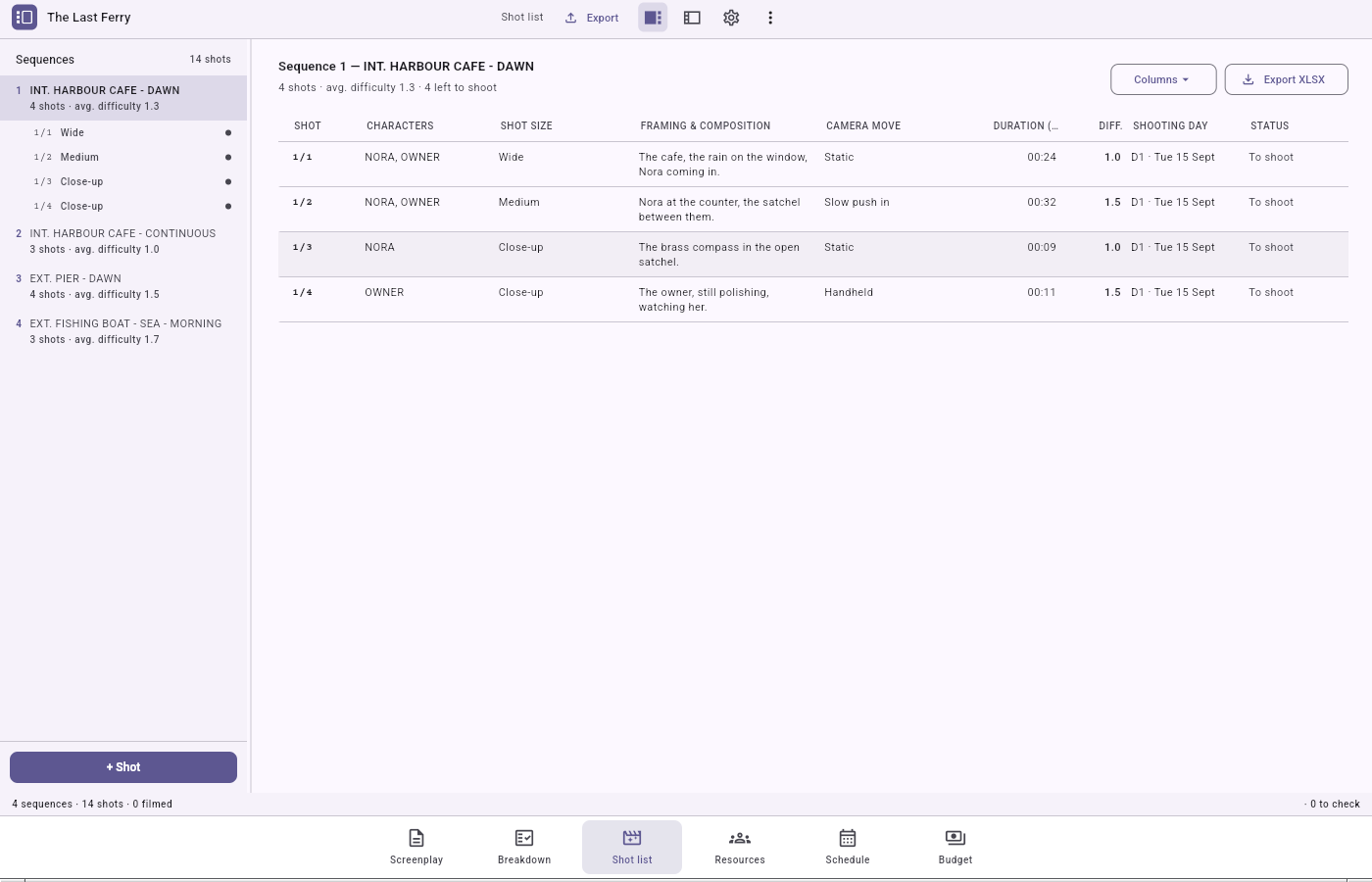
The screen layout
Three zones, all resizable (the ⋮ menu → Reset panel layout restores the defaults):
- Left panel — the scene tree. One row per scene, with its number (in the accent colour), its
heading and a summary (shot count · average difficulty). Click a scene to select it; it expands
and lists its shots. A special "orphan" group gathers shots whose scene was deleted from
the screenplay — deleting a scene never destroys its shots. The panel footer holds the
+ Shotbutton. - Centre — the shot table. A dense, read-only table of the selected scene's shots. Columns
always present: shot code, characters, shot size, framing, camera move, difficulty. The
Columns ▾menu adds others (set, lens, format, duration, takes, sound, shooting day, status). Clicking a row selects the shot and opens the inspector — no editing in the table. - Right panel — the tabbed dock: Inspector (edit the shot), Metadata (a read-only summary) and Versions.
- Status bar: number of scenes, total shots, filmed shots, shots to check.
Adding, editing, deleting a shot
- Add: select a real scene (not the orphan group), then
+ Shot. A shot is created at the end of the scene and selected. - Edit: click a shot to open the inspector, then edit the fields in place. Text fields save themselves a couple of seconds after you stop typing.
- Reorder: shot codes are
scene/rankand are derived automatically; the application renumbers after a deletion. - Delete:
Delete shotat the bottom of the inspector (or the delete button on the row, for an orphan shot). Both ask for confirmation.
The shot inspector
The inspector groups: a header with the code and a status pill, plus a "needs checking" callout when the covered text has changed; Characters (chips to toggle, drawn from the screenplay); Coverage (see below); Image (shot size, abbreviation, framing, camera move, lens, recording format); Difficulty (four axes — set, camera move, acting, sound — rated 0 to 5, whose average shows and reddens as it climbs); Production (estimated duration in m:ss, sound notes); Notes (mise en scène); Location (scouting notes).
Coverage — linking a shot to the screenplay
The Coverage section lists, read-only, the extracts the shot films, with a "N words covered
of M" counter and the codes of the other shots covering the same text. To change it, click
Select…: a dialog shows the scene typeset on a sheet, in screenplay font. Click a word to
open a range, click again to close it (a range can span several blocks); clicking already-
covered text removes that range. Your shot's coverage shows as a strong highlight, other shots'
coverage as a faint wash. Clear all removes every range.
If the screenplay later changes, affected extracts get a Modified badge and the shot is flagged for checking — you clear the flag with Mark as checked.
What this mode exports
- Shot list workbook (XLSX) — one row per shot with all its fields (code, characters, set, shot size, framing, camera move, lens, format, duration, takes, sound, difficulty, day, status, notes).
- Scenario coverage PDF — your screenplay printed as usual, with a coloured bar in the margin alongside each passage a shot covers; passages no shot covers are washed out. Each shot has its own colour (unique within its scene). An options dialog offers the page format, the title page, the scene numbers, a legend page and a summary page.
The shooting day and the planned takes appear here, but it is the Schedule mode that owns them: the shot list only reads them out.