Breakdown
What the breakdown is for
The breakdown is the pass where you read the screenplay once to tag everything the shoot must provide: roles, sets, props, costumes, and more. It sits between the Screenplay and the Shot list, because it is what fills the catalogues of the Resources mode: tagging a passage is how an element, a role or a set gets attached to a scene.
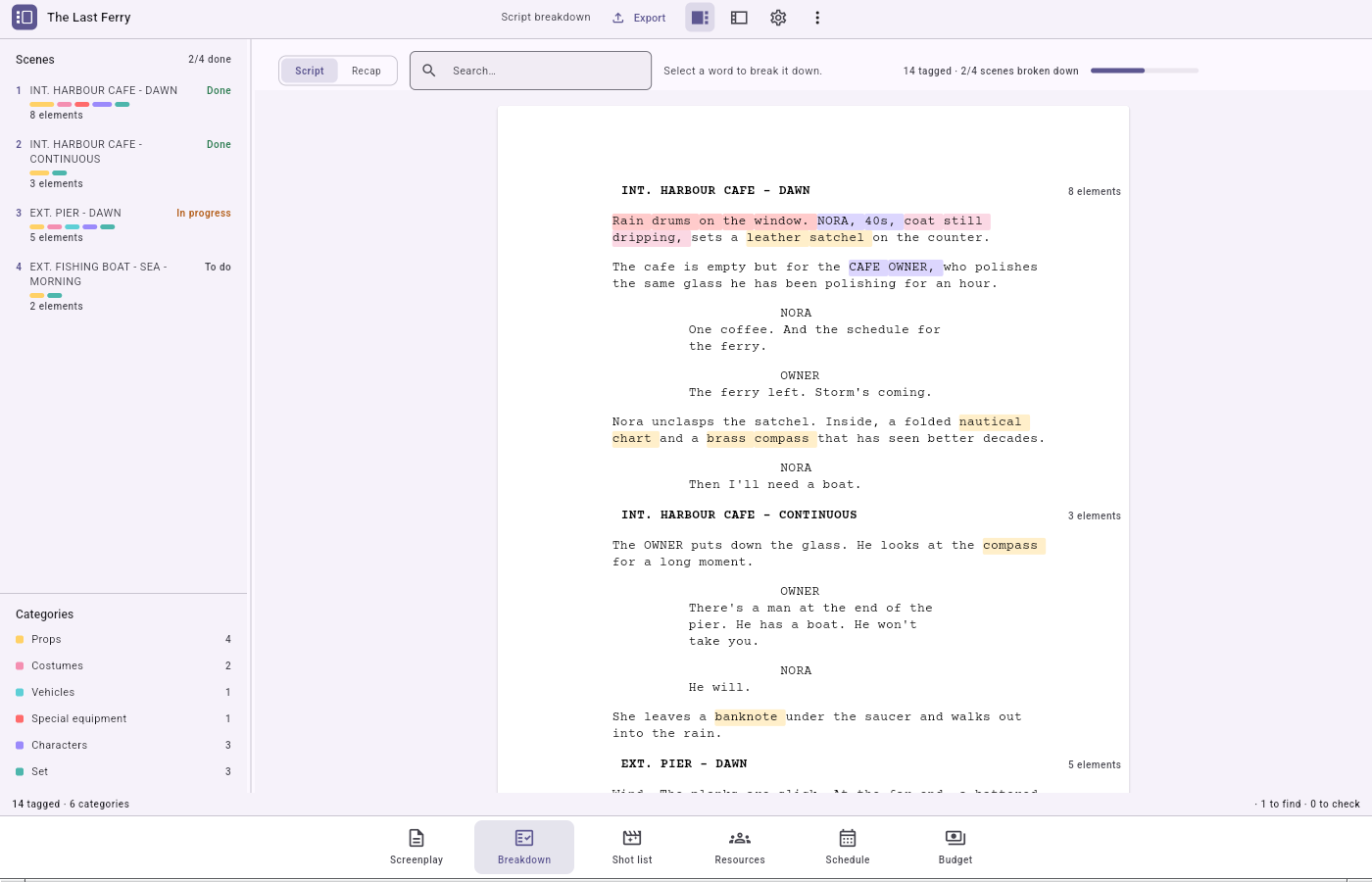
The mode works on the selected episode, while the catalogues you fill belong to the whole production. Each scene also carries a progress status you set by hand — To do / In progress / Done — because a scene may need nothing yet still have been read.
The tag categories and their colours
A tag points at one of three kinds: a role (character, soft violet), a set (place, teal), or an element. Elements are split into fourteen categories, each of a fixed colour (prop, set dressing, costume, make-up, vehicle, animal, special equipment, camera, lighting, sound, production, catering, extras, other…). A category's colour is the same in every project and every export, so the legend always reads the same way.
The script view (the tagging pass)
The centre shows your screenplay typeset like a paper sheet. Every word is clickable, and tagged passages are highlighted in their category's colour.
To tag a passage:
- click a first word to open a selection, then a second word to close it;
- a tag popover opens, its search field pre-filled with the passage you chose; results are grouped by kind;
- click a result to link it — or click a category chip to create a new element in that category on the spot and tag it in one gesture.
Good to know:
- The application tidies your selection: quotes, brackets, commas, full stops and emphasis markers hugging the ends are dropped, to keep only the thing itself.
- Only elements and sets can be created here: a role comes from the screenplay itself. When the search names neither a role nor a set, the popover offers Create a set.
- Tags never overlap. Clicking an already-tagged word selects that tag (and opens its sheet) instead of starting a new one.
- If the same wording appears elsewhere, the application offers to tag those occurrences, but never does it for you.
Removing a tag does not automatically remove the underlying scene link (things can be linked by hand in Resources, with no tag): the inspector asks you about that as a separate confirmation.
The recap (the table)
From the mode's header band, switch to the recap: a cross-table, one row per element, one column per scene. You see at a glance which scenes call for a given prop, character or set. The header search filters the recap's rows.
The link with Resources
- Creating a tag also creates, in the same gesture, the link it implies.
- Renaming an element or a set from its sheet renames the actual catalogue entry: tooltips, legend, recap and the Resources mode all update together.
- Each target's sheet offers Open in Resources, the application's single cross-mode jump: it switches to Resources and lands on the exact record.
The two documents
- Breakdown sheets (PDF) — one printed sheet per scene, the document you hand a department head.
- Workbook (XLSX) — a two-sheet spreadsheet the production office reworks: a Scenes sheet and a long, filterable Breakdown sheet.
Neither asks any question: choosing its card goes straight to the save dialog.