Screenplay
The Screenplay mode is where you write the screenplay of the selected episode. The application works in Fountain (a plain-text screenplay format), but you never have to think in "code": you write on a formatted page, or you edit the raw Fountain text with a preview beside it.
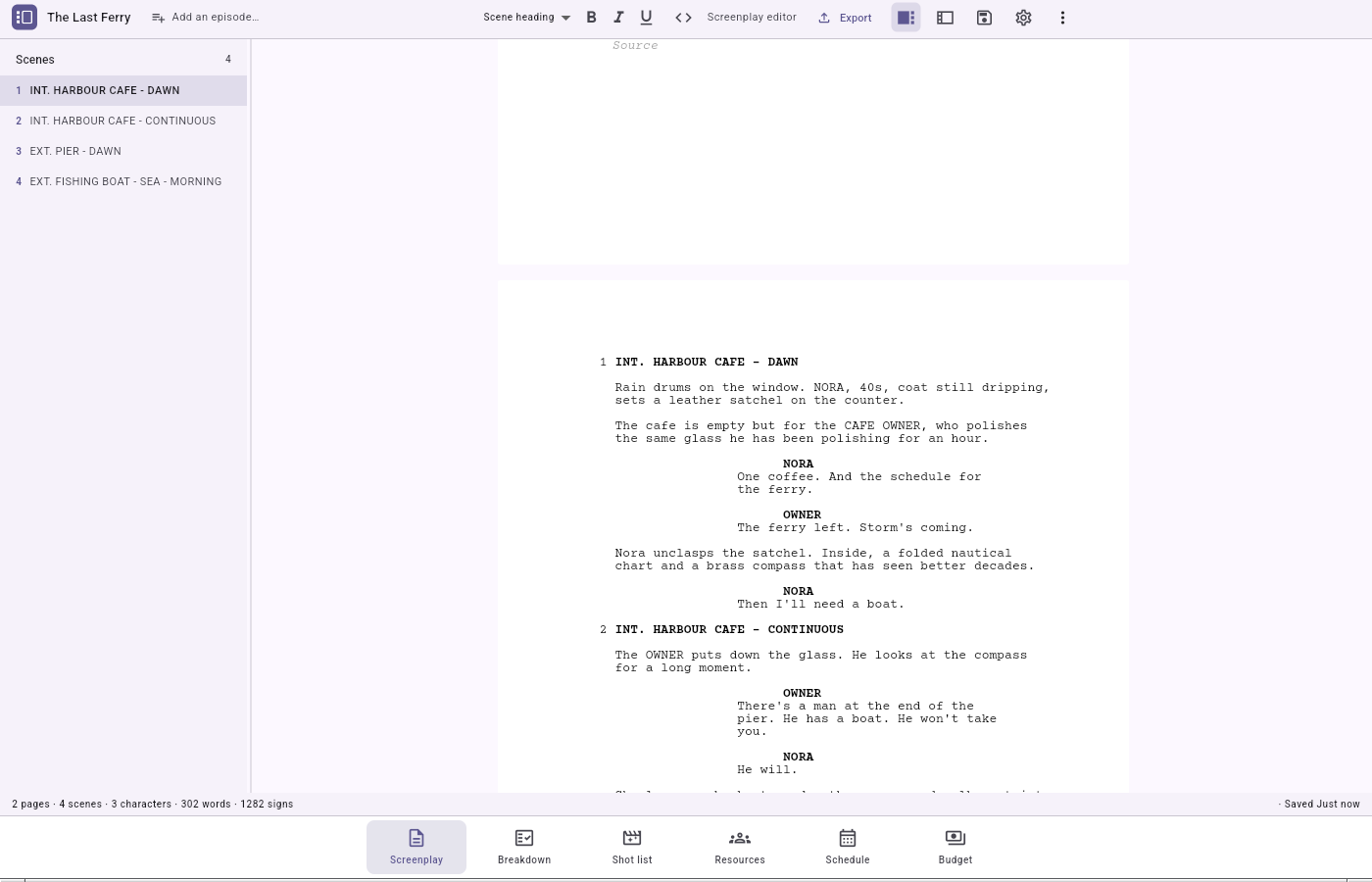
The two editing modes
- Styled editor — a surface that shows the screenplay the way it will print. Each paragraph is a typed block (scene heading, action, character, dialogue…), formatted automatically. With page simulation, your text lays onto real paper-sized sheets, printed page numbers included.
- Raw Fountain text — a text field where you type the Fountain source directly, with a paper-simulated preview side by side that shows the formatted result as you go.
To switch between the two: Ctrl+Shift+M (or the ⋮ menu). Undo history belongs to the surface you are on: switching starts a fresh history, so finish an edit before you toggle.
The elements the editor understands
The editor recognises and formats the standard screenplay elements: scene headings
(INT./EXT., with a number written #N# if needed), action, character (with
extensions such as (V.O.)), dialogue and parentheticals, transitions, centered
text, notes (kept out of print), plus sections, synopses and lyrics.
A few useful gestures in the styled editor:
- Tab / Shift+Tab cycles the current block's type through the six common types and locks it.
- Enter starts the block type that normally follows; Shift+Enter keeps the same type.
- A block-type menu and the B / I / U toggles live in the toolbar; a right-click offers Cut, Copy, Paste, Select all and a block-type submenu.
- Copy-paste inside the app preserves block types; text pasted from outside is analysed and split into the right elements.
The scene panel (on the left)
A resizable panel lists your scenes so you can navigate and jump between them.
About scene numbers: an explicit #N# is always respected. In styled mode, the editor can
also display a computed number for a heading that has none (the Show scene numbers toggle
in the ⋮ menu, on by default). Computed numbers are display only: they are never written into
your file, and an explicit #N# always wins. The preview and the PDF print only explicit
numbers.
The title page
In styled mode, the title page is an editable first sheet. It shows its six fields — Title, Credit, Author, Draft date, Contact, Source — with hints for empty ones, laid out like a real title page. You edit in place, or via the Edit… button in the metadata panel. If every field is empty, no title page is written; when present, it occupies the whole of page 1 and does not count in the numbering.
Importing a screenplay from another format
The application opens a screenplay received from a production — a Final Draft .fdx or a
Celtx .celtx — and converts it to Fountain, which becomes your source. Headings, action,
characters, parentheticals, dialogue, transitions, dual dialogue, act breaks, emphasis and the
title page are brought across.
An .fdx leaves behind its margin notes, its revision marks and its locked pages. A .celtx
brings in only its first script document. Importing replaces the current screenplay: the
application has you confirm before it overwrites your text.
Statistics and tools
- The status bar shows live counters over the printable screenplay: number of pages, scenes, speaking characters, words and signs.
- The tabbed right-hand panel holds a preview, a scene inspector (heading, speaking characters, estimated duration), the title page, the versions, and a Fountain syntax guide available in both modes.
- Spell checking runs as you type: see Spell check and the dictionary.
What this mode exports
- a screenplay PDF (paginated, with the title page and your explicit scene numbers);
- a
.fountainfile (text).
Both suggest a file name that includes the episode, so a screenplay from another episode saved into the same folder is not overwritten.